Rendering 90,000 particles in Unity: what actually costs CPU and GPU time
15 min
Guide to instancing in Unity 6.3
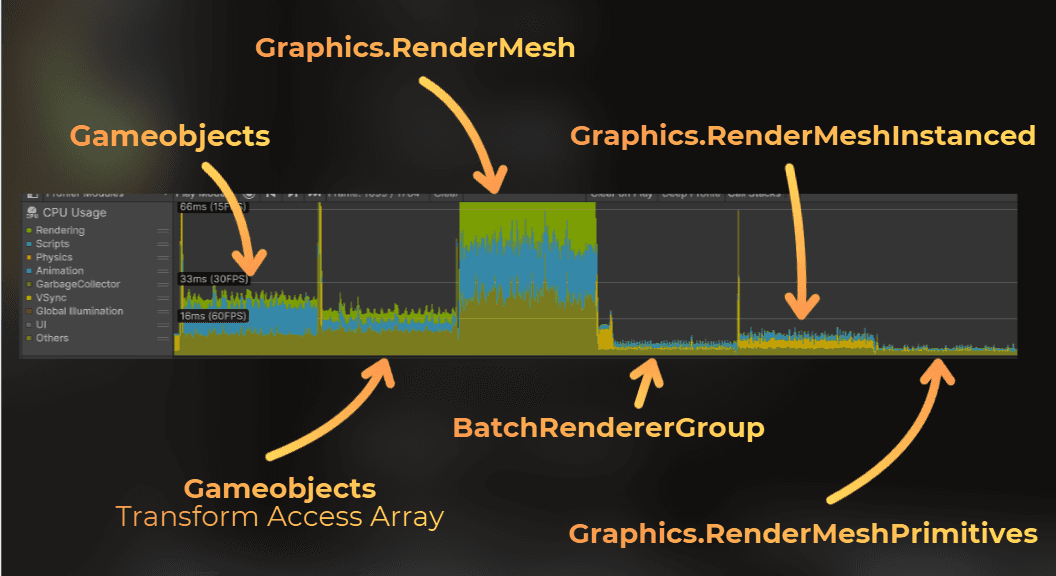
What is the best way to render many objects in Unity efficiently? In this article I compare several ways to render the same CPU-simulated particle scene in Unity 6 with URP.
I will explain the particle implementation first, then render the same scene using these methods:
GameObjects
GameObjects with GPU Resident Drawer
Graphics.RenderMesh
Graphics.RenderMeshInstanced
Graphics.RenderMeshPrimitives
Batch Renderer Group
The goal is to see where each method spends time, what becomes the bottleneck, and which option is practical to use.
___
Particle Simulation
Let's start by rendering something nice. I created particles that are simulated on the CPU. Each particle has position, velocity, and size.
structParticleData
{
publicfloat3position;
public float _pad0; // Padding to get 16-byte alignmentpublicfloat3velocity;
public float size
structParticleData
{
publicfloat3position;
public float _pad0; // Padding to get 16-byte alignmentpublicfloat3velocity;
public float size
structParticleData
{
publicfloat3position;
public float _pad0; // Padding to get 16-byte alignmentpublicfloat3velocity;
public float size
I prepared some parameters for the simulation, where I can control the particle behaviour:
publicpartialclassParticleSimulation : MonoBehaviour
{
[SerializeField] int particleCount = 512;
[SerializeField] float3gravity = newfloat3(0f, -9.81f, 0f);
[SerializeField] float noiseStrength = 0.35f;
[SerializeField] float noiseFrequency = 1.25f;
[SerializeField] float centerPullStrength = 0.6f;
[SerializeField] float airDrag = 1.5f;
[SerializeField] float groundBounce = 0.65f;
[SerializeField] float defaultParticleSize = 0.04f;
// Here I store the data for each particle.NativeArray<ParticleData> particles;
voidOnEnable()
{
// Initialize all the particles inside the unit sphereparticles = newNativeArray<ParticleData>(particleCount, Allocator.Persistent);
for (int i = 0; i < particleCount; i++)
{
particles[i] = newParticleData
{
position = (float3)Random.insideUnitSphere,
velocity = float3.zero,
size = defaultParticleSize,
};
}
}
voidOnDisable()
{
// Dispose the allocated data when the component is disabledif (particles.IsCreated)
particles.Dispose
publicpartialclassParticleSimulation : MonoBehaviour
{
[SerializeField] int particleCount = 512;
[SerializeField] float3gravity = newfloat3(0f, -9.81f, 0f);
[SerializeField] float noiseStrength = 0.35f;
[SerializeField] float noiseFrequency = 1.25f;
[SerializeField] float centerPullStrength = 0.6f;
[SerializeField] float airDrag = 1.5f;
[SerializeField] float groundBounce = 0.65f;
[SerializeField] float defaultParticleSize = 0.04f;
// Here I store the data for each particle.NativeArray<ParticleData> particles;
voidOnEnable()
{
// Initialize all the particles inside the unit sphereparticles = newNativeArray<ParticleData>(particleCount, Allocator.Persistent);
for (int i = 0; i < particleCount; i++)
{
particles[i] = newParticleData
{
position = (float3)Random.insideUnitSphere,
velocity = float3.zero,
size = defaultParticleSize,
};
}
}
voidOnDisable()
{
// Dispose the allocated data when the component is disabledif (particles.IsCreated)
particles.Dispose
publicpartialclassParticleSimulation : MonoBehaviour
{
[SerializeField] int particleCount = 512;
[SerializeField] float3gravity = newfloat3(0f, -9.81f, 0f);
[SerializeField] float noiseStrength = 0.35f;
[SerializeField] float noiseFrequency = 1.25f;
[SerializeField] float centerPullStrength = 0.6f;
[SerializeField] float airDrag = 1.5f;
[SerializeField] float groundBounce = 0.65f;
[SerializeField] float defaultParticleSize = 0.04f;
// Here I store the data for each particle.NativeArray<ParticleData> particles;
voidOnEnable()
{
// Initialize all the particles inside the unit sphereparticles = newNativeArray<ParticleData>(particleCount, Allocator.Persistent);
for (int i = 0; i < particleCount; i++)
{
particles[i] = newParticleData
{
position = (float3)Random.insideUnitSphere,
velocity = float3.zero,
size = defaultParticleSize,
};
}
}
voidOnDisable()
{
// Dispose the allocated data when the component is disabledif (particles.IsCreated)
particles.Dispose
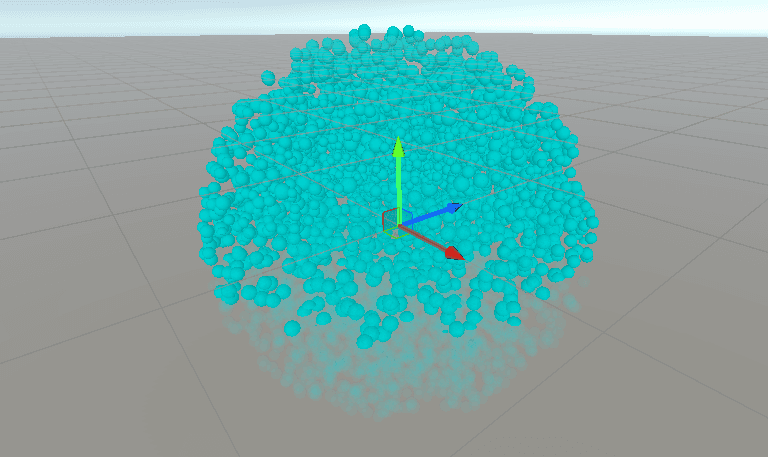
This is how the particles look when initialized, rendered as sphere gizmos.
Then I added simulation with:
Gravity
Noise-based velocity modulation
A force that pulls the particles towards the center
Air drag
Movement according to velocity
Bouncing off the ground
I implemented the simulation using a Burst-compiled parallel job:
voidUpdate()
{
if (!particles.IsCreated)
return;
// Particle simulation runs in parallel through the Job System.varjob = newSimulateParticlesJob
{
particles = particles,
deltaTime = Time.deltaTime,
gravity = gravity,
noiseStrength = noiseStrength,
noiseFrequency = noiseFrequency,
noiseTime = Time.timeSinceLevelLoad,
centerPullStrength = centerPullStrength,
airDrag = airDrag,
groundBounce = groundBounce,
};
job.Schedule(particles.Length, 64).Complete();
}
[BurstCompile]
structSimulateParticlesJob : IJobParallelFor
{
publicNativeArray<ParticleData> particles;
public float deltaTime;
publicfloat3gravity;
public float noiseStrength;
public float noiseFrequency;
public float noiseTime;
public float centerPullStrength;
public float airDrag;
public float groundBounce;
publicvoidExecute(int index)
{
ParticleDatap = particles[index];
// Apply gravityp.velocity += gravity * deltaTime;
// Apply perlin noise to modulate the velocityfloat3noiseOffset = newfloat3(noiseTime, noiseTime * 0.37f, noiseTime * 0.19f);
float3samplePos = p.position * noiseFrequency + noiseOffset;
float3noiseForce = newfloat3(
noise.cnoise(samplePos),
noise.cnoise(samplePos + 17.3f),
noise.cnoise(samplePos + 41.7f));
p.velocity += noiseForce * (noiseStrength * deltaTime);
// Apply force towards the center
float dist = math.length(p.position);
if (dist > 1e-5f)
{
float3toCenter = -p.position / dist;
p.velocity += toCenter * (centerPullStrength * dist * deltaTime);
}
// Apply air drag
float dragFactor = math.saturate(1f - airDrag * deltaTime);
p.velocity *= dragFactor;
// Move the position according to the velocityp.position += p.velocity * deltaTime;
// Bounce the particle off the groundif (p.position.y < 0f)
{
p.position.y = -p.position.y;
if (p.velocity.y < 0f)
p.velocity.y = -p.velocity.y * groundBounce;
}
particles[index] = p
voidUpdate()
{
if (!particles.IsCreated)
return;
// Particle simulation runs in parallel through the Job System.varjob = newSimulateParticlesJob
{
particles = particles,
deltaTime = Time.deltaTime,
gravity = gravity,
noiseStrength = noiseStrength,
noiseFrequency = noiseFrequency,
noiseTime = Time.timeSinceLevelLoad,
centerPullStrength = centerPullStrength,
airDrag = airDrag,
groundBounce = groundBounce,
};
job.Schedule(particles.Length, 64).Complete();
}
[BurstCompile]
structSimulateParticlesJob : IJobParallelFor
{
publicNativeArray<ParticleData> particles;
public float deltaTime;
publicfloat3gravity;
public float noiseStrength;
public float noiseFrequency;
public float noiseTime;
public float centerPullStrength;
public float airDrag;
public float groundBounce;
publicvoidExecute(int index)
{
ParticleDatap = particles[index];
// Apply gravityp.velocity += gravity * deltaTime;
// Apply perlin noise to modulate the velocityfloat3noiseOffset = newfloat3(noiseTime, noiseTime * 0.37f, noiseTime * 0.19f);
float3samplePos = p.position * noiseFrequency + noiseOffset;
float3noiseForce = newfloat3(
noise.cnoise(samplePos),
noise.cnoise(samplePos + 17.3f),
noise.cnoise(samplePos + 41.7f));
p.velocity += noiseForce * (noiseStrength * deltaTime);
// Apply force towards the center
float dist = math.length(p.position);
if (dist > 1e-5f)
{
float3toCenter = -p.position / dist;
p.velocity += toCenter * (centerPullStrength * dist * deltaTime);
}
// Apply air drag
float dragFactor = math.saturate(1f - airDrag * deltaTime);
p.velocity *= dragFactor;
// Move the position according to the velocityp.position += p.velocity * deltaTime;
// Bounce the particle off the groundif (p.position.y < 0f)
{
p.position.y = -p.position.y;
if (p.velocity.y < 0f)
p.velocity.y = -p.velocity.y * groundBounce;
}
particles[index] = p
voidUpdate()
{
if (!particles.IsCreated)
return;
// Particle simulation runs in parallel through the Job System.varjob = newSimulateParticlesJob
{
particles = particles,
deltaTime = Time.deltaTime,
gravity = gravity,
noiseStrength = noiseStrength,
noiseFrequency = noiseFrequency,
noiseTime = Time.timeSinceLevelLoad,
centerPullStrength = centerPullStrength,
airDrag = airDrag,
groundBounce = groundBounce,
};
job.Schedule(particles.Length, 64).Complete();
}
[BurstCompile]
structSimulateParticlesJob : IJobParallelFor
{
publicNativeArray<ParticleData> particles;
public float deltaTime;
publicfloat3gravity;
public float noiseStrength;
public float noiseFrequency;
public float noiseTime;
public float centerPullStrength;
public float airDrag;
public float groundBounce;
publicvoidExecute(int index)
{
ParticleDatap = particles[index];
// Apply gravityp.velocity += gravity * deltaTime;
// Apply perlin noise to modulate the velocityfloat3noiseOffset = newfloat3(noiseTime, noiseTime * 0.37f, noiseTime * 0.19f);
float3samplePos = p.position * noiseFrequency + noiseOffset;
float3noiseForce = newfloat3(
noise.cnoise(samplePos),
noise.cnoise(samplePos + 17.3f),
noise.cnoise(samplePos + 41.7f));
p.velocity += noiseForce * (noiseStrength * deltaTime);
// Apply force towards the center
float dist = math.length(p.position);
if (dist > 1e-5f)
{
float3toCenter = -p.position / dist;
p.velocity += toCenter * (centerPullStrength * dist * deltaTime);
}
// Apply air drag
float dragFactor = math.saturate(1f - airDrag * deltaTime);
p.velocity *= dragFactor;
// Move the position according to the velocityp.position += p.velocity * deltaTime;
// Bounce the particle off the groundif (p.position.y < 0f)
{
p.position.y = -p.position.y;
if (p.velocity.y < 0f)
p.velocity.y = -p.velocity.y * groundBounce;
}
particles[index] = p
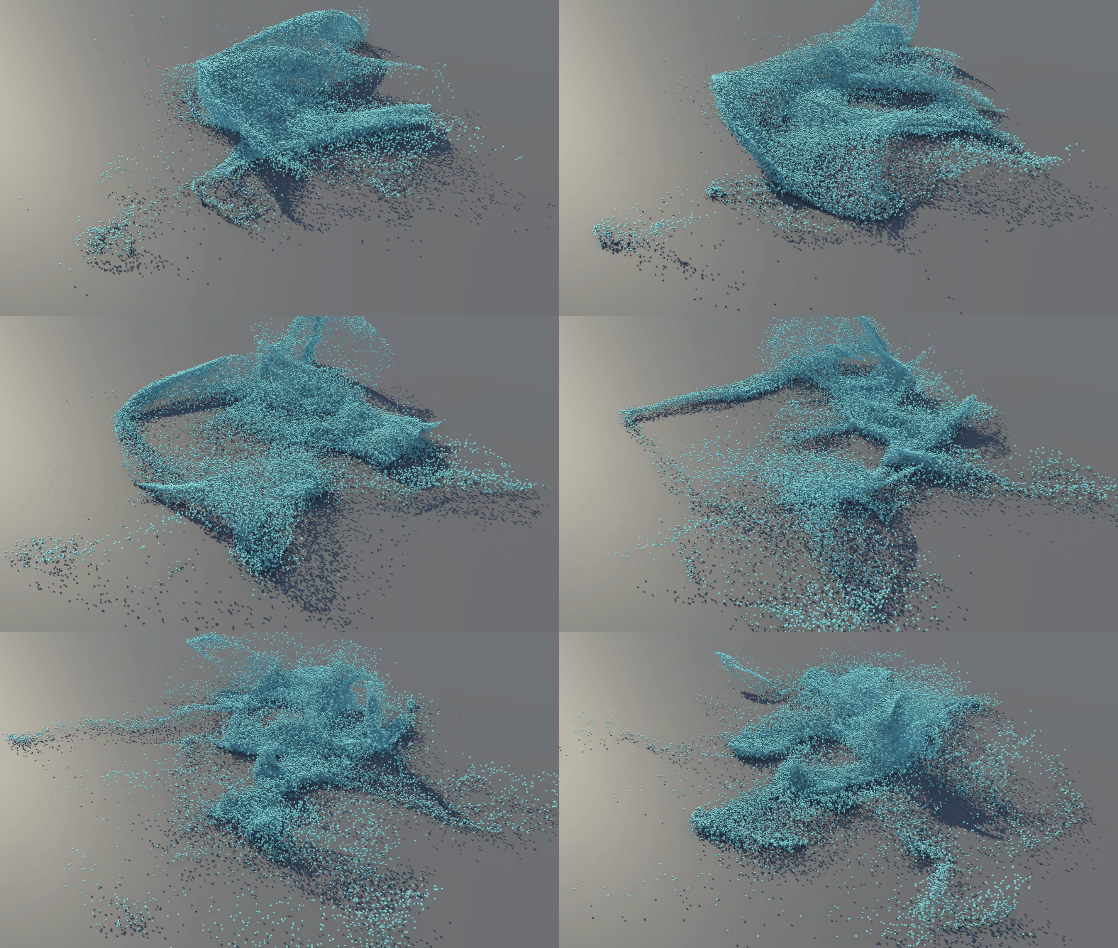
This is how the simulation looks for 5000 particles rendered with Gizmos:
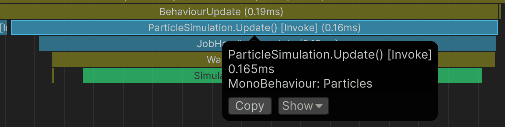
For 5000 particles, simulation takes about 0.16 ms on my i5-10400F:
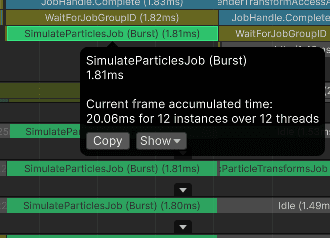
For 90 000 particles, the median time is 1.81 ms.
:center-50:
In the next sections I will render 90 000 particles with each method and measure the impact on the CPU and GPU.
My profiling setup for every measurement is:
CPU: i5-10400F
GPU: RTX 3060 12 GB
RAM: DDR4 64 GB 1333 MHz
Resolution: 1600x900
Unity: 6000.3.11f1 (Unity 6), URP, Windows Build IL2CPP Master, debugging and deep profiling disabled, DX12
___
1. GameObjects
Let's start with the most direct approach: create one GameObject for each particle and update its transform every frame.
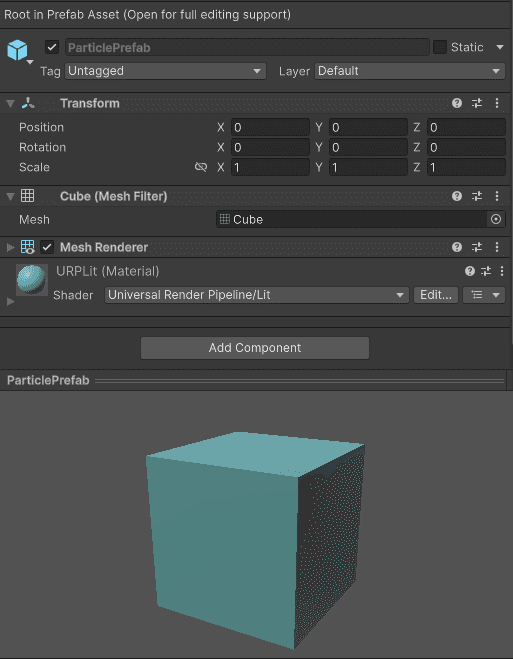
So I created this GameObject as a prefab:
:center-50:
And at the start of the simulation, I create one instance of this GameObject for each particle.
particleTransforms = newTransform[particles.Length];
for (int i = 0; i < particles.Length; i++)
{
GameObjectinstance = Instantiate(particlePrefab, transform);
instance.name = $"{particlePrefab.name}_{i}";
particleTransforms[i] = instance.transform
particleTransforms = newTransform[particles.Length];
for (int i = 0; i < particles.Length; i++)
{
GameObjectinstance = Instantiate(particlePrefab, transform);
instance.name = $"{particlePrefab.name}_{i}";
particleTransforms[i] = instance.transform
particleTransforms = newTransform[particles.Length];
for (int i = 0; i < particles.Length; i++)
{
GameObjectinstance = Instantiate(particlePrefab, transform);
instance.name = $"{particlePrefab.name}_{i}";
particleTransforms[i] = instance.transform
Then each frame, I modify each transform to match the particle position and size.
for (int i = 0; i < particles.Length; i++)
{
ParticleDatap = particles[i];
TransformparticleTransform = particleTransforms[i];
particleTransform.localPosition = p.position;
particleTransform.localScale = Vector3.one * p.size
for (int i = 0; i < particles.Length; i++)
{
ParticleDatap = particles[i];
TransformparticleTransform = particleTransforms[i];
particleTransform.localPosition = p.position;
particleTransform.localScale = Vector3.one * p.size
for (int i = 0; i < particles.Length; i++)
{
ParticleDatap = particles[i];
TransformparticleTransform = particleTransforms[i];
particleTransform.localPosition = p.position;
particleTransform.localScale = Vector3.one * p.size
GameObjects: CPU performance
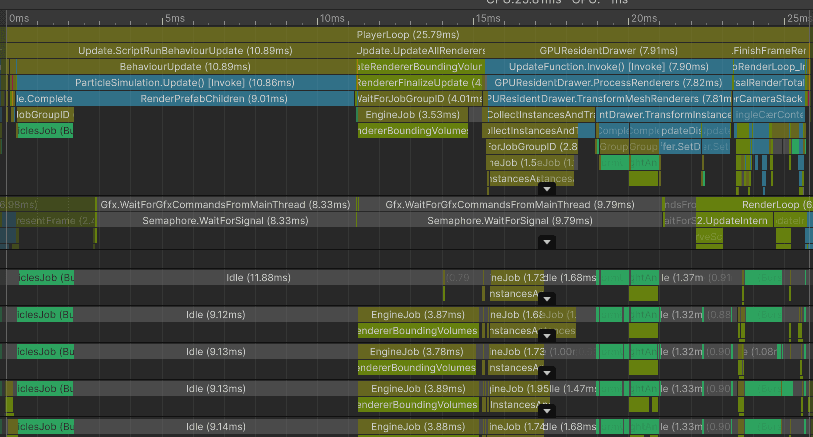
For now I have the SRP Batcher enabled and GPU Resident Drawer disabled.
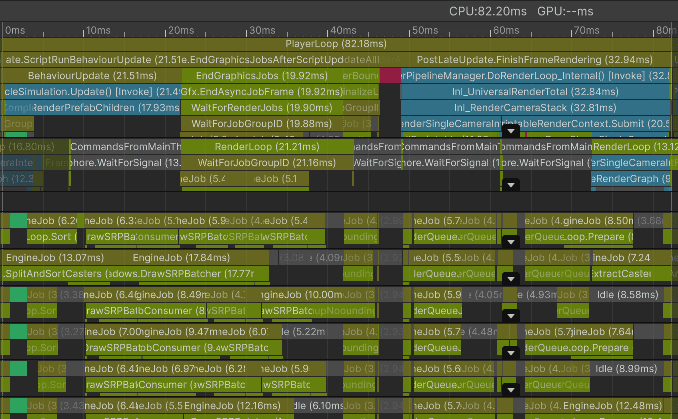
Notice how the worker threads are busy preparing rendering work. That leaves fewer worker threads available for the particle simulation job, so the particle update also becomes slower.
Frame median for the main thread: 81.76 ms
ParticleSimulation.Update: 22.66 ms
UpdateAllRenderers: 4.43 ms
Waiting for render thread jobs: 20.75 ms
FinishFrameRendering: 31.93 ms
Bottleneck: main thread and render-thread preparation
GameObjects: GPU performance
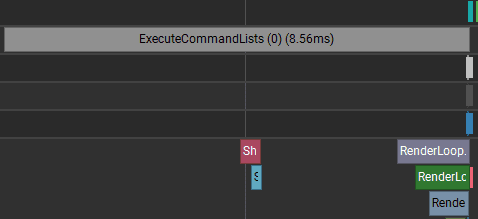
The GPU time is much lower than the CPU time, so this case is CPU-bound overall. GPU frame time: 8.56 ms
:center-50:
The GPU timeline shows large gaps between small draw calls. The GPU is often waiting for the CPU/render thread to submit more work, rather than spending all its time shading pixels.
Each particle is rendered as a separate draw for each shadowmap cascade and the color pass. The draw call count here is extreme: 270 010 draw calls per frame.
:center-px:
___
2. GameObjects with GPU Resident Drawer
The SRP Batcher reduces per-draw CPU setup, but it does not merge separate renderers into one instanced draw. With one renderer per particle, Unity still submits a huge number of draws.
The GPU can render the same mesh many times in one draw call when using instanced rendering. That is useful when you need to render many objects that use the same mesh and material, which is the case here.
GPU Resident Drawer is a newer Unity rendering path focused on GPU-driven instancing. It finds objects that use the same mesh and material, keeps their instance data resident on the GPU, and renders them in instanced batches.
It greatly reduces the cost of submitting many individual draw calls, but it adds its own CPU work to build and manage the batches. In this scene, that tradeoff is worth it.
GPU Resident Drawer can be enabled in the Universal Render Pipeline Asset:
GameObjects with GPU Resident Drawer: CPU performance
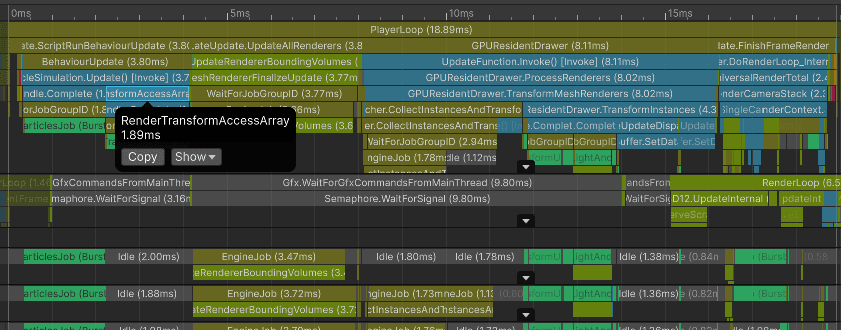
After enabling GPU Resident Drawer, the main-thread median dropped from 81.76 ms to 24.88 ms. There is also much more free time on the worker threads.
Frame median for the main thread: 24.88 ms
ParticleSimulation.Update: 9.78 ms
UpdateAllRenderers: 3.77 ms
GPU Resident Drawer: 8.30 ms
FinishFrameRendering: 2.52 ms
Bottleneck: main thread
Interestingly, setting transform positions became 2-3x faster with GPU Resident Drawer enabled. The most likely reason is not that transform writes became cheaper by themselves, but that the first capture had much heavier rendering work competing for worker threads and engine-side synchronization.
At this point, one of the slowest parts of the frame is updating the particle transforms. One optimization is to use TransformAccessArray with a Burst-compiled IJobParallelForTransform, which updates transforms much faster than a normal C# loop. Unity has a good example in the documentation: https://docs.unity3d.com/6000.4/Documentation/ScriptReference/Jobs.IJobParallelForTransform.html
I implemented that for the particles, and these are the results:
Frame median for the main thread: 18.91 ms
ParticleSimulation.Update: 3.41 ms
UpdateAllRenderers: 4.13 ms
GPU Resident Drawer: 8.24 ms
FinishFrameRendering: 2.61 ms
Using Transform Access Array saved 6.37 ms on particle update time compared to GPU Resident Drawer without it (9.78 ms → 3.41 ms). Overall main thread time dropped from 24.88 ms to 18.91 ms, saving 5.97 ms.
Bottleneck: main thread
GameObjects with GPU Resident Drawer: GPU performance
Now let's look at the GPU side of GPU Resident Drawer.
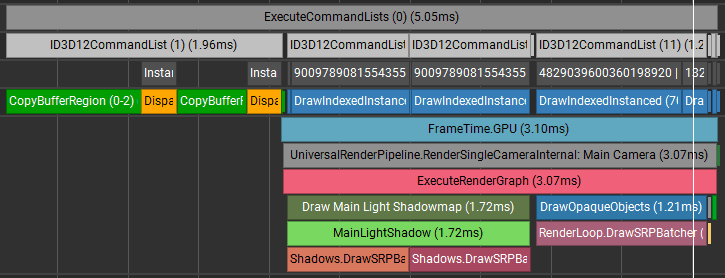
GPU frame time: 5.05 ms, where:
1.96 ms - sending instance data to the GPU
3.10 ms - render time
Compared to plain GameObjects without GPU Resident Drawer, GPU frame time dropped from 8.56 ms to 5.05 ms, saving 3.51 ms.
___
3. Graphics.RenderMesh
Now let's see what happens if I do not use GameObjects and instead submit all draws manually from C#.
I iterate through each particle and use Graphics.RenderMesh to submit one draw for each instance. Conceptually, each call creates immediate rendering work that lives for one frame.
So, here is the code I added to the Update method:
voidUpdate()
{
// Particle simulation runs before this point.// Use a Burst-compiled multithreaded job to build all matrices.newBuildParticleMatricesJob
{
particles = particles,
matrices = instanceMatrices,
}.Schedule(particles.Length, 64).Complete();
RenderParamsrenderParams = CreateRenderParams(material);
for (int i = 0; i < particles.Length; i++)
Graphics.RenderMesh(renderParams, mesh, SubmeshIndex, instanceMatrices[i]);
}
// BuildParticleMatricesJob definition.
[BurstCompile]
structBuildParticleMatricesJob : IJobParallelFor
{
[ReadOnly] publicNativeArray<ParticleData> particles;
publicNativeArray<Matrix4x4> matrices;
publicvoidExecute(int index)
{
ParticleDatap = particles[index];
matrices[index] = newMatrix4x4(
newVector4(p.size, 0f, 0f, 0f),
newVector4(0f, p.size, 0f, 0f),
newVector4(0f, 0f, p.size, 0f),
newVector4(p.position.x, p.position.y, p.position.z, 1f
voidUpdate()
{
// Particle simulation runs before this point.// Use a Burst-compiled multithreaded job to build all matrices.newBuildParticleMatricesJob
{
particles = particles,
matrices = instanceMatrices,
}.Schedule(particles.Length, 64).Complete();
RenderParamsrenderParams = CreateRenderParams(material);
for (int i = 0; i < particles.Length; i++)
Graphics.RenderMesh(renderParams, mesh, SubmeshIndex, instanceMatrices[i]);
}
// BuildParticleMatricesJob definition.
[BurstCompile]
structBuildParticleMatricesJob : IJobParallelFor
{
[ReadOnly] publicNativeArray<ParticleData> particles;
publicNativeArray<Matrix4x4> matrices;
publicvoidExecute(int index)
{
ParticleDatap = particles[index];
matrices[index] = newMatrix4x4(
newVector4(p.size, 0f, 0f, 0f),
newVector4(0f, p.size, 0f, 0f),
newVector4(0f, 0f, p.size, 0f),
newVector4(p.position.x, p.position.y, p.position.z, 1f
voidUpdate()
{
// Particle simulation runs before this point.// Use a Burst-compiled multithreaded job to build all matrices.newBuildParticleMatricesJob
{
particles = particles,
matrices = instanceMatrices,
}.Schedule(particles.Length, 64).Complete();
RenderParamsrenderParams = CreateRenderParams(material);
for (int i = 0; i < particles.Length; i++)
Graphics.RenderMesh(renderParams, mesh, SubmeshIndex, instanceMatrices[i]);
}
// BuildParticleMatricesJob definition.
[BurstCompile]
structBuildParticleMatricesJob : IJobParallelFor
{
[ReadOnly] publicNativeArray<ParticleData> particles;
publicNativeArray<Matrix4x4> matrices;
publicvoidExecute(int index)
{
ParticleDatap = particles[index];
matrices[index] = newMatrix4x4(
newVector4(p.size, 0f, 0f, 0f),
newVector4(0f, p.size, 0f, 0f),
newVector4(0f, 0f, p.size, 0f),
newVector4(p.position.x, p.position.y, p.position.z, 1f
Graphics.RenderMesh: CPU performance
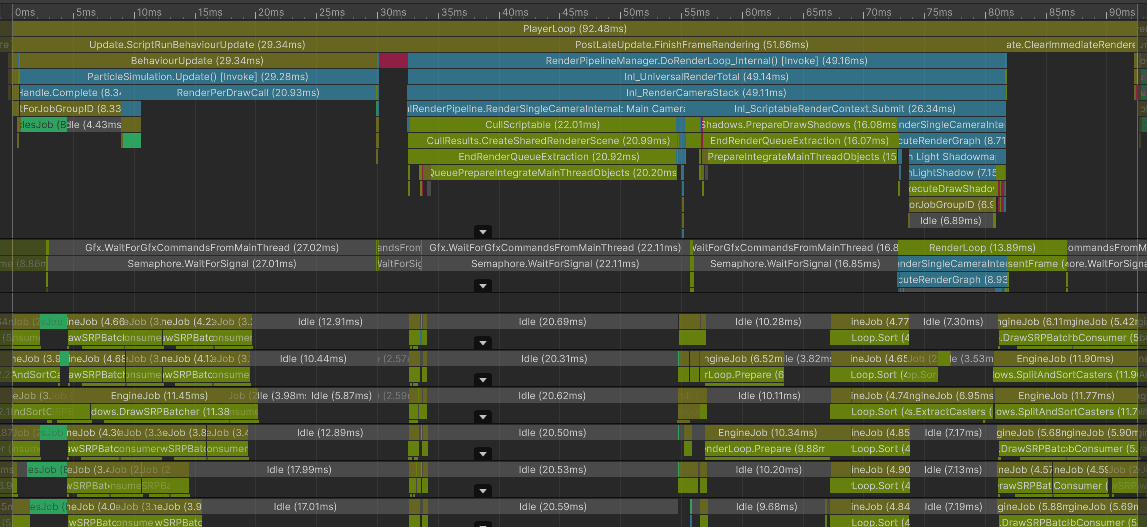
This does not look good. This path creates a huge amount of work for both the main thread and the render thread.
Frame median for the main thread: 92.53 ms
ParticleSimulation.Update: 28.38 ms
FinishFrameRendering: 51.77 ms
Clear immediate renderers: 10.94 ms
Bottleneck: main thread
Graphics.RenderMesh: GPU performance
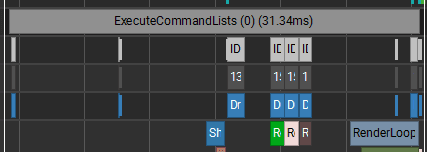
GPU performance also looks bad. Because each draw is submitted separately from code, Unity cannot merge these calls into instanced batches. The bottleneck is still the CPU/render thread feeding the GPU, not raw shader cost.
There are too many state changes and gaps between the 270 010 draw calls.
Measured frame time was 31.34 ms
:center-px:
___
4. Graphics.RenderMeshInstanced
Now let's look at explicit instancing. Unity has a few ways to do this. First, I will try Graphics.RenderMeshInstanced, which renders one mesh many times from an array of local-to-world matrices.
The limitation is that this method passes matrices through a shader uniform array, and uniform arrays have a limited size. Unity supports up to 1023 matrices per call here. For 90k particles, that still means about 88 script-level draw calls, before URP expands them into shadow and color passes.
Like RenderMesh, each call submits immediate rendering work for the current frame.
The code looks like this:
const int InstancedBatchSize = 1023;
voidUpdate()
{
// Particle simulation runs before this point.// Use a Burst-compiled multithreaded job to build all matrices.newBuildParticleMatricesJob
{
particles = particles,
matrices = instanceMatrices,
}.Schedule(particles.Length, 64).Complete();
// Prepare rendering params: layer, bounds, shadows, motion vectors, etc.RenderParamsrenderParams = CreateRenderParams(material);
// Render until all particles are submitted.
int particleIndex = 0;
while (particleIndex < particles.Length)
{
// Render particles in batches of up to 1023 instances.
int batchCount = math.min(InstancedBatchSize, particles.Length - particleIndex);
Graphics.RenderMeshInstanced(renderParams, mesh, SubmeshIndex, instanceMatrices, batchCount, particleIndex);
// Increase particle index by the batch countparticleIndex += batchCount;
}
}
// Job that builds the matrix array
[BurstCompile]
structBuildParticleMatricesJob : IJobParallelFor
{
[ReadOnly] publicNativeArray<ParticleData> particles;
publicNativeArray<Matrix4x4> matrices;
publicvoidExecute(int index)
{
ParticleDatap = particles[index];
matrices[index] = newMatrix4x4(
newVector4(p.size, 0f, 0f, 0f),
newVector4(0f, p.size, 0f, 0f),
newVector4(0f, 0f, p.size, 0f),
newVector4(p.position.x, p.position.y, p.position.z, 1f
const int InstancedBatchSize = 1023;
voidUpdate()
{
// Particle simulation runs before this point.// Use a Burst-compiled multithreaded job to build all matrices.newBuildParticleMatricesJob
{
particles = particles,
matrices = instanceMatrices,
}.Schedule(particles.Length, 64).Complete();
// Prepare rendering params: layer, bounds, shadows, motion vectors, etc.RenderParamsrenderParams = CreateRenderParams(material);
// Render until all particles are submitted.
int particleIndex = 0;
while (particleIndex < particles.Length)
{
// Render particles in batches of up to 1023 instances.
int batchCount = math.min(InstancedBatchSize, particles.Length - particleIndex);
Graphics.RenderMeshInstanced(renderParams, mesh, SubmeshIndex, instanceMatrices, batchCount, particleIndex);
// Increase particle index by the batch countparticleIndex += batchCount;
}
}
// Job that builds the matrix array
[BurstCompile]
structBuildParticleMatricesJob : IJobParallelFor
{
[ReadOnly] publicNativeArray<ParticleData> particles;
publicNativeArray<Matrix4x4> matrices;
publicvoidExecute(int index)
{
ParticleDatap = particles[index];
matrices[index] = newMatrix4x4(
newVector4(p.size, 0f, 0f, 0f),
newVector4(0f, p.size, 0f, 0f),
newVector4(0f, 0f, p.size, 0f),
newVector4(p.position.x, p.position.y, p.position.z, 1f
const int InstancedBatchSize = 1023;
voidUpdate()
{
// Particle simulation runs before this point.// Use a Burst-compiled multithreaded job to build all matrices.newBuildParticleMatricesJob
{
particles = particles,
matrices = instanceMatrices,
}.Schedule(particles.Length, 64).Complete();
// Prepare rendering params: layer, bounds, shadows, motion vectors, etc.RenderParamsrenderParams = CreateRenderParams(material);
// Render until all particles are submitted.
int particleIndex = 0;
while (particleIndex < particles.Length)
{
// Render particles in batches of up to 1023 instances.
int batchCount = math.min(InstancedBatchSize, particles.Length - particleIndex);
Graphics.RenderMeshInstanced(renderParams, mesh, SubmeshIndex, instanceMatrices, batchCount, particleIndex);
// Increase particle index by the batch countparticleIndex += batchCount;
}
}
// Job that builds the matrix array
[BurstCompile]
structBuildParticleMatricesJob : IJobParallelFor
{
[ReadOnly] publicNativeArray<ParticleData> particles;
publicNativeArray<Matrix4x4> matrices;
publicvoidExecute(int index)
{
ParticleDatap = particles[index];
matrices[index] = newMatrix4x4(
newVector4(p.size, 0f, 0f, 0f),
newVector4(0f, p.size, 0f, 0f),
newVector4(0f, 0f, p.size, 0f),
newVector4(p.position.x, p.position.y, p.position.z, 1f
The code above could be optimized further. I could:
Simulate the particles in Update(),
Schedule this job without calling Complete(), but call JobHandle.ScheduleBatchedJobs() to ensure the job starts immediately without blocking the main thread,
In LateUpdate() call .Complete() on the job handle and render the particles using the Graphics API.
This lets matrix calculation run between Update() and LateUpdate() on worker threads. It is not truly free, but it can hide the cost if worker threads are available and the main thread has other work to do.
This test scene does not have meaningful gameplay work between those callbacks, so I did not expect that optimization to change the measurements much.
Adjusting the shader
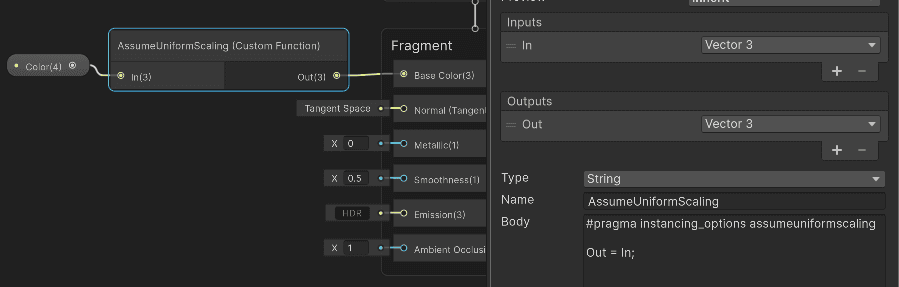
To make the shader support the full 1023 instances per call, the documentation recommends adding #pragma instancing_options assumeuniformscaling. Without it, Unity may need additional inverse matrices for normal transformations, which reduces the number of instances that fit in the uniform array.
I created a custom Shader Graph with a custom function node with this pragma and used it in rendering. Now this shader should be able to render 1023 instances in one RenderMeshInstanced call.
Let's check the rendering performance.
Graphics.RenderMeshInstanced: CPU performance
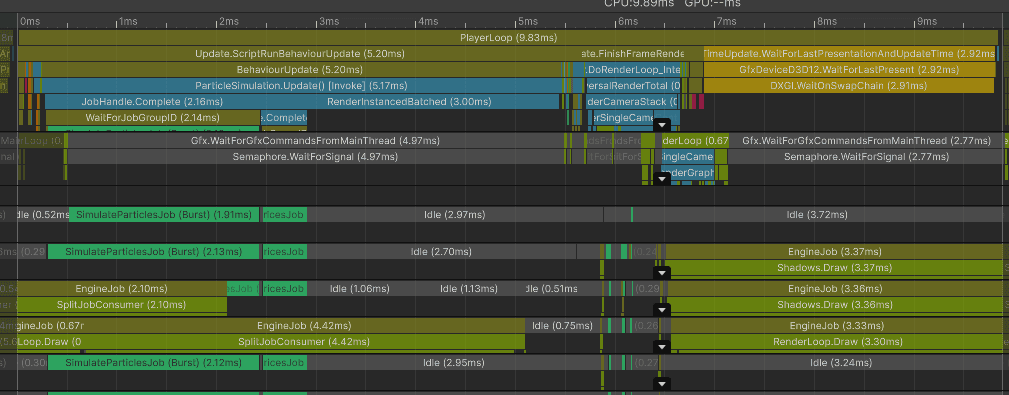
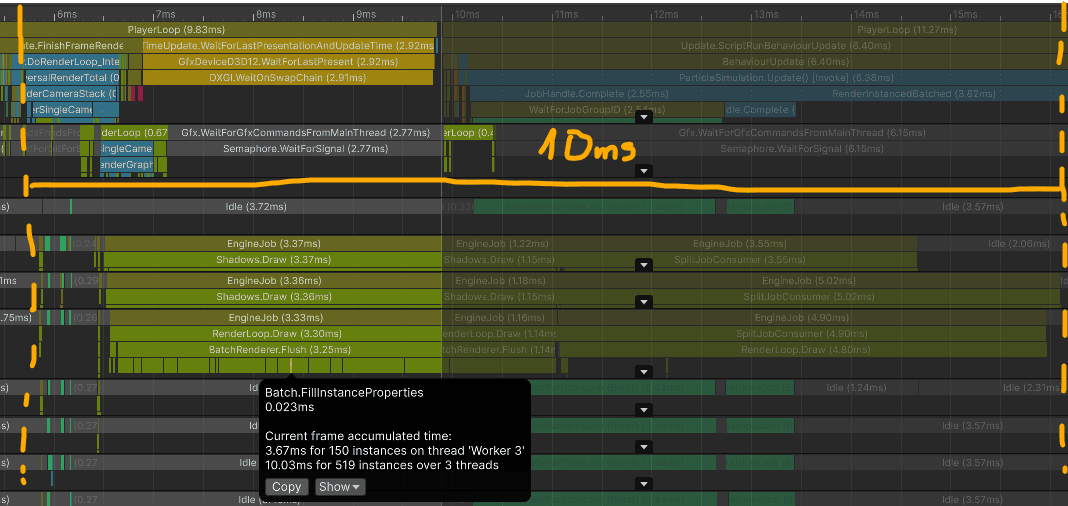
Most of the main-thread time is spent preparing batches and waiting for rendering work to catch up.
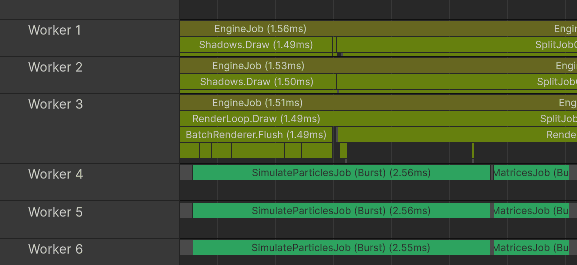
However, the render thread becomes the main problem. Preparing these instanced batches is much cheaper than 90k separate draw calls, but it is still visible at this scale:
Notice how shadow rendering uses only 2 worker threads and opaque rendering only one. In this capture, Unity was not able to spread batch preparation across more than a few threads. That rendering work also competes with the particle simulation and matrix-building jobs.
Median CPU time was 9.92 ms:
ParticleSimulation.Update: 4.44 ms
FinishFrameRendering: 0.93 ms
Wait for last present: 3.52 ms (in this capture, mostly a symptom of the render thread not feeding the GPU fast enough)
Bottleneck: render thread
Graphics.RenderMeshInstanced: GPU performance
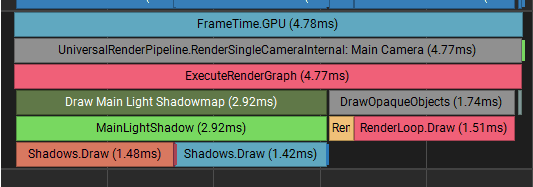
The GPU looks a bit better. I measured 4.78 ms for a frame time.
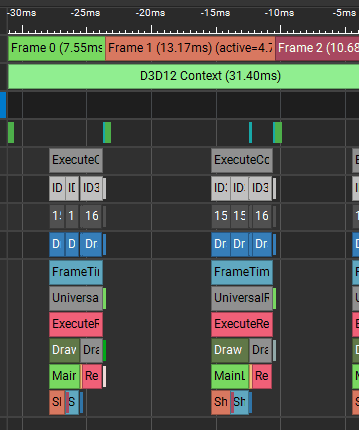
However, the slow render thread caused gaps on the GPU timeline. The empty spaces between frames are time where the GPU is waiting for the CPU/render thread to submit more command lists.
:center-px:
The capture points to CPU-to-GPU submission and data transfer overhead, not heavy GPU shading.
___
5. Graphics.RenderMeshPrimitives
Now let's look at an instancing method that is not restricted to 1023 matrices per call: Graphics.RenderMeshPrimitives.
This method lets me submit any number of instances in one script-level call. The drawback is that I must provide per-instance data to the shader myself. Standard URP shaders do not know how to read my custom particle buffer out of the box.
I already store all particles in a NativeArray. I can send that data directly to the GPU and use it in the shader to place each particle.
NativeArray<ParticleData> particles; // I could just send this data to the GPU and use it as is.
NativeArray<ParticleData> particles; // I could just send this data to the GPU and use it as is.
NativeArray<ParticleData> particles; // I could just send this data to the GPU and use it as is.
C# implementation
At the start of the particle simulation, I allocate a graphics buffer for the particle data. In this case, the graphics buffer is the GPU-side array that the shader will read.
// Keep the reference to the graphics bufferGraphicsBufferparticleBuffer;
// Material property block will be used to bind the buffer to the materialMaterialPropertyBlockproceduralMaterialProperties;
voidOnEnable()
{
// Particle data allocation happens before this point.// Allocate graphics buffer with particlesparticleBuffer = newGraphicsBuffer(GraphicsBuffer.Target.Structured, particleCount, UnsafeUtility.SizeOf<ParticleData>());
proceduralMaterialProperties = newMaterialPropertyBlock
// Keep the reference to the graphics bufferGraphicsBufferparticleBuffer;
// Material property block will be used to bind the buffer to the materialMaterialPropertyBlockproceduralMaterialProperties;
voidOnEnable()
{
// Particle data allocation happens before this point.// Allocate graphics buffer with particlesparticleBuffer = newGraphicsBuffer(GraphicsBuffer.Target.Structured, particleCount, UnsafeUtility.SizeOf<ParticleData>());
proceduralMaterialProperties = newMaterialPropertyBlock
// Keep the reference to the graphics bufferGraphicsBufferparticleBuffer;
// Material property block will be used to bind the buffer to the materialMaterialPropertyBlockproceduralMaterialProperties;
voidOnEnable()
{
// Particle data allocation happens before this point.// Allocate graphics buffer with particlesparticleBuffer = newGraphicsBuffer(GraphicsBuffer.Target.Structured, particleCount, UnsafeUtility.SizeOf<ParticleData>());
proceduralMaterialProperties = newMaterialPropertyBlock
Each frame, after the simulation is finished, I sync the particle state to this GPU buffer. Then I render the particles using Graphics.RenderMeshPrimitives. Unity still expands this into the required shadow and opaque passes.
voidUpdate()
{
// Particle simulation runs before this point.// Send all particle data to the GPU.using (Markers.SyncParticleBuffer.Auto())
particleBuffer.SetData(particles);
// Bind the GPU buffer with particles to the shader.proceduralMaterialProperties.SetBuffer(Uniforms._Particles, particleBuffer);
// Submit all particles in one RenderMeshPrimitives call.RenderParamsrenderParams = CreateRenderParams(proceduralMaterial);
renderParams.matProps = proceduralMaterialProperties;
Graphics.RenderMeshPrimitives(renderParams, mesh, SubmeshIndex, particles.Length
voidUpdate()
{
// Particle simulation runs before this point.// Send all particle data to the GPU.using (Markers.SyncParticleBuffer.Auto())
particleBuffer.SetData(particles);
// Bind the GPU buffer with particles to the shader.proceduralMaterialProperties.SetBuffer(Uniforms._Particles, particleBuffer);
// Submit all particles in one RenderMeshPrimitives call.RenderParamsrenderParams = CreateRenderParams(proceduralMaterial);
renderParams.matProps = proceduralMaterialProperties;
Graphics.RenderMeshPrimitives(renderParams, mesh, SubmeshIndex, particles.Length
voidUpdate()
{
// Particle simulation runs before this point.// Send all particle data to the GPU.using (Markers.SyncParticleBuffer.Auto())
particleBuffer.SetData(particles);
// Bind the GPU buffer with particles to the shader.proceduralMaterialProperties.SetBuffer(Uniforms._Particles, particleBuffer);
// Submit all particles in one RenderMeshPrimitives call.RenderParamsrenderParams = CreateRenderParams(proceduralMaterial);
renderParams.matProps = proceduralMaterialProperties;
Graphics.RenderMeshPrimitives(renderParams, mesh, SubmeshIndex, particles.Length
Shader for procedural instancing
Now the data is accessible in shader code through StructuredBuffer<ParticleData> _Particles, so it is time to create a shader for it.
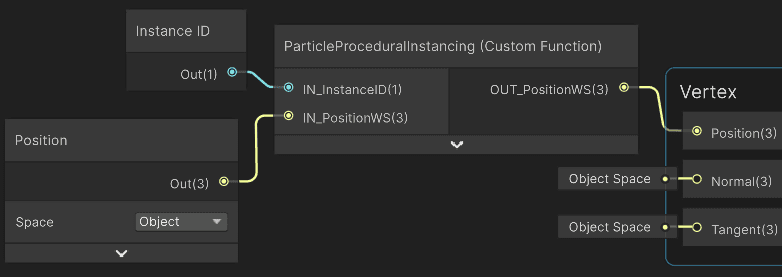
I used Shader Graph for this. The goal is to modify the vertex position for each particle instance.
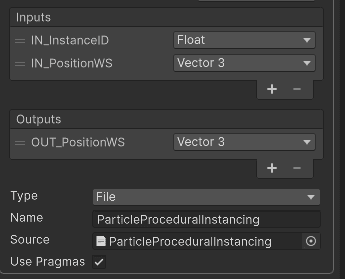
I need the InstanceID so the shader can read the matching particle from the buffer. I use a custom function node to apply the position and scale for each particle.
In this setup, the local-to-world matrix is identity, so the incoming position is already in world space for the procedural placement step.
The custom node I created uses the HLSL code that implements the instancing.
:center-px:
And this is the HLSL implementation. Explanations are in the code's comments:
#ifndefPARTICLE_PROCEDURAL_INSTANCING_INCLUDED#definePARTICLE_PROCEDURAL_INSTANCING_INCLUDED#include"Packages/com.unity.render-pipelines.universal/ShaderLibrary/Core.hlsl"// Must match ParticleData in ParticleSimulation.cs - 16-byte alignment per field group.// 16-byte alignment can help GPU structured-buffer reads on some hardware.structParticleData
{
float3position;
float _pad0;
float3velocity;
float size;
};
// Set from C# each frame via MaterialPropertyBlock.StructuredBuffer<ParticleData> _Particles;
voidParticleProceduralInstancing_float(in uint IN_InstanceID, infloat3IN_PositionWS, outfloat3OUT_PositionWS)
{
// Instance count was passed to Graphics.RenderMeshPrimitives.// InstanceID indexes the particle buffer.ParticleDataparticleData = _Particles[IN_InstanceID];
// Uniform scale around the mesh origin, then translate to the particle position.OUT_PositionWS = IN_PositionWS * particleData.size + particleData.position;
}
#endif
#ifndefPARTICLE_PROCEDURAL_INSTANCING_INCLUDED#definePARTICLE_PROCEDURAL_INSTANCING_INCLUDED#include"Packages/com.unity.render-pipelines.universal/ShaderLibrary/Core.hlsl"// Must match ParticleData in ParticleSimulation.cs - 16-byte alignment per field group.// 16-byte alignment can help GPU structured-buffer reads on some hardware.structParticleData
{
float3position;
float _pad0;
float3velocity;
float size;
};
// Set from C# each frame via MaterialPropertyBlock.StructuredBuffer<ParticleData> _Particles;
voidParticleProceduralInstancing_float(in uint IN_InstanceID, infloat3IN_PositionWS, outfloat3OUT_PositionWS)
{
// Instance count was passed to Graphics.RenderMeshPrimitives.// InstanceID indexes the particle buffer.ParticleDataparticleData = _Particles[IN_InstanceID];
// Uniform scale around the mesh origin, then translate to the particle position.OUT_PositionWS = IN_PositionWS * particleData.size + particleData.position;
}
#endif
#ifndefPARTICLE_PROCEDURAL_INSTANCING_INCLUDED#definePARTICLE_PROCEDURAL_INSTANCING_INCLUDED#include"Packages/com.unity.render-pipelines.universal/ShaderLibrary/Core.hlsl"// Must match ParticleData in ParticleSimulation.cs - 16-byte alignment per field group.// 16-byte alignment can help GPU structured-buffer reads on some hardware.structParticleData
{
float3position;
float _pad0;
float3velocity;
float size;
};
// Set from C# each frame via MaterialPropertyBlock.StructuredBuffer<ParticleData> _Particles;
voidParticleProceduralInstancing_float(in uint IN_InstanceID, infloat3IN_PositionWS, outfloat3OUT_PositionWS)
{
// Instance count was passed to Graphics.RenderMeshPrimitives.// InstanceID indexes the particle buffer.ParticleDataparticleData = _Particles[IN_InstanceID];
// Uniform scale around the mesh origin, then translate to the particle position.OUT_PositionWS = IN_PositionWS * particleData.size + particleData.position;
}
#endif
And that's it! Time to create a material that uses this shader and use it to render the particles.
Graphics.RenderMeshPrimitives: CPU performance
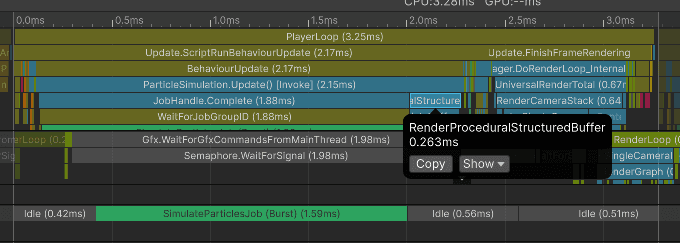
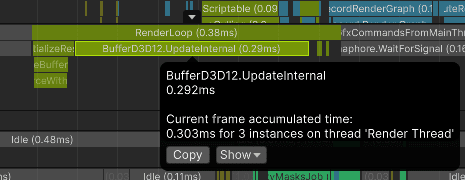
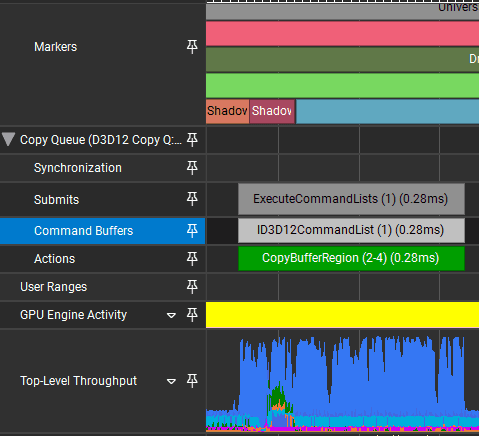
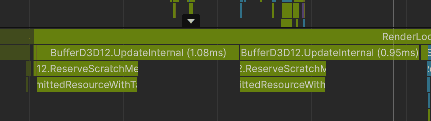
For this use case, this is the most efficient rendering method. The biggest cost is uploading particle data from the CPU to the GPU. SetData copies the particle data into Unity's upload path, and the render thread/GPU copy queue performs the actual upload.
Median time copying the data was 0.263 ms
On the render thread, the data was sent to the GPU using BufferD3D12.UpdateInternal:
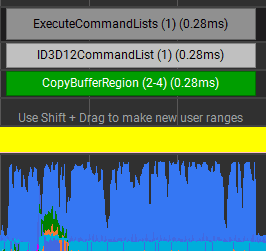
This is in the same range as the GPU copy time reported by NVIDIA Nsight, though the screenshots are not from the exact same frame.
:center-px:
Median frame time for the CPU was 3.40 ms:
Particle update: 2.12 ms (simulation: 1.84 ms, invoking the draw call: 0.26 ms)
FinishFrameRendering: 0.72 ms
Wait for present: 0.24 ms
Bottleneck: mostly GPU, with CPU and GPU close enough that this scenario is fairly balanced.
Graphics.RenderMeshPrimitives: GPU performance
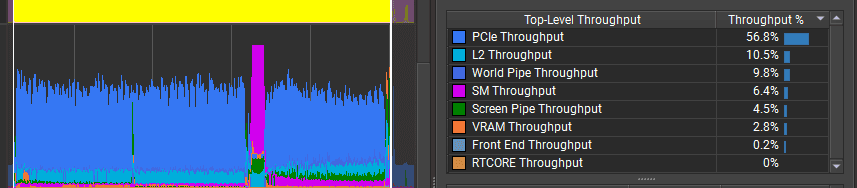
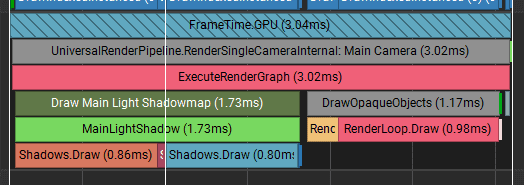
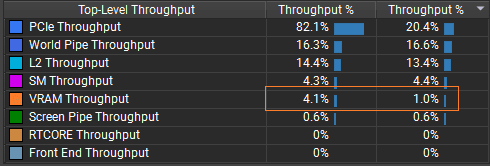
GPU frame time was ~3.02 ms, with about 0.25 ms of waiting between frames.
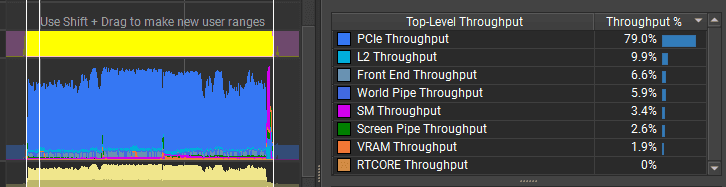
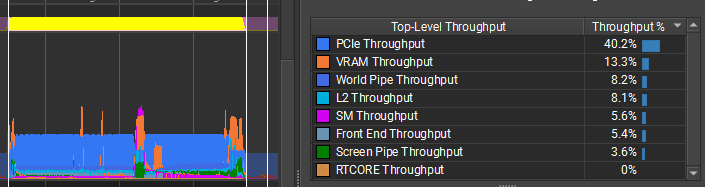
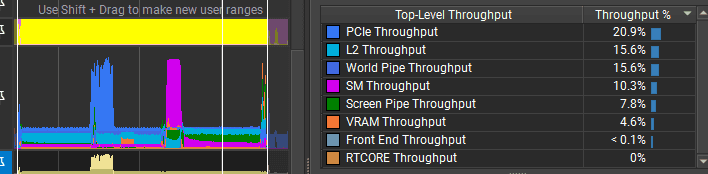
The bottleneck does not look like PCIe bandwidth. The GPU throughput counters are low, which suggests the particles are too small on screen and the triangles are too tiny to render efficiently. To optimize the GPU further, I would change the particle mesh, for example by rendering quad impostors instead of full cube meshes. I could also experiment with mesh format and batching more particles into a single mesh to see whether workload distribution improves on this GPU.
For the whole frame, only 12 GPU draw calls started:
:center-px:
In NVIDIA Nsight I can also see the async copy queue uploading particle data while rendering is happening. In this capture, VRAM usage increased from 1% to 4%.
:center-px:
:center-px:
___
6. Batch Renderer Group
Finally, there is one more instanced rendering API in Unity: Batch Renderer Group.
Batch Renderer Group was created for the DOTS rendering stack, but it can also be used outside ECS. One useful property of BRG is that it works with URP shaders that understand Unity's normal per-instance transform data.
The concept is similar to procedural instancing: keep per-instance data in a GPU buffer and let the shader read it per instance. But Batch Renderer Group takes a completely different implementation path.
You do not issue a draw call from Update(). Instead you:
Register a batch with Unity,
Keep a GPU buffer of per-instance transforms up to date,
Answer a culling callback when the engine is ready to render, and fill draw commands from a Burst-compatible job.
All of that allows you to:
cull instances using a multithreaded Burst-compiled job,
submit draw commands for different meshes and materials, as long as they use the same per-instance data layout.
But this flexibility comes with the cost of massive boilerplate code. Let me show you how it works.
Initializing the BRG
At setup, I create a BatchRendererGroup, register my mesh and material, and allocate a raw GraphicsBuffer that holds one transform pair per particle (unity_ObjectToWorld and unity_WorldToObject). The snippets below are called once to initialize the BRG.
// Create the BRGbatchRendererGroup = newBatchRendererGroup(OnPerformCulling, IntPtr.Zero); // THIS ALREADY REGISTERS THE GROUP FOR RENDERING WITH THE CULLING CALLBACK!// Register mesh/material handles used later in draw commands.brgMeshId = batchRendererGroup.RegisterMesh(mesh);
brgMaterialId = batchRendererGroup.RegisterMaterial(material);
// Calculate and store the instance countbrgInstanceCount = particles.Length;
// CPU-side staging arrays - packed into the GPU buffer each frame.brgObjectToWorld = newNativeArray<PackedMatrix>(brgInstanceCount, Allocator.Persistent);
brgWorldToObject = newNativeArray<PackedMatrix>(brgInstanceCount, Allocator.Persistent);
// Raw buffer holds all instance matrices// First half of the buffer is local-to-world matrices, then second half is world-to-local matrices.// Also this is a raw buffer. So I need to manually calculate the amount of bytes to allocate for all those matrices.varbufferTarget = GraphicsBuffer.Target.Raw;
int bufferCount = BufferCountForInstances(BrgBytesPerInstance, brgInstanceCount, BrgExtraBytes);
brgInstanceData = newGraphicsBuffer(bufferTarget, bufferCount, sizeof(int));
// Size the raw buffer in 4-byte chunks (GraphicsBuffer stride is sizeof(int) here).static int BufferCountForInstances(int bytesPerInstance, int numInstances, int extraBytes = 0)
{
bytesPerInstance = (bytesPerInstance + sizeof(int) - 1) / sizeof(int) * sizeof(int);
extraBytes = (extraBytes + sizeof(int) - 1) / sizeof(int) * sizeof(int);
int totalBytes = bytesPerInstance * numInstances + extraBytes;
returntotalBytes / sizeof
// Create the BRGbatchRendererGroup = newBatchRendererGroup(OnPerformCulling, IntPtr.Zero); // THIS ALREADY REGISTERS THE GROUP FOR RENDERING WITH THE CULLING CALLBACK!// Register mesh/material handles used later in draw commands.brgMeshId = batchRendererGroup.RegisterMesh(mesh);
brgMaterialId = batchRendererGroup.RegisterMaterial(material);
// Calculate and store the instance countbrgInstanceCount = particles.Length;
// CPU-side staging arrays - packed into the GPU buffer each frame.brgObjectToWorld = newNativeArray<PackedMatrix>(brgInstanceCount, Allocator.Persistent);
brgWorldToObject = newNativeArray<PackedMatrix>(brgInstanceCount, Allocator.Persistent);
// Raw buffer holds all instance matrices// First half of the buffer is local-to-world matrices, then second half is world-to-local matrices.// Also this is a raw buffer. So I need to manually calculate the amount of bytes to allocate for all those matrices.varbufferTarget = GraphicsBuffer.Target.Raw;
int bufferCount = BufferCountForInstances(BrgBytesPerInstance, brgInstanceCount, BrgExtraBytes);
brgInstanceData = newGraphicsBuffer(bufferTarget, bufferCount, sizeof(int));
// Size the raw buffer in 4-byte chunks (GraphicsBuffer stride is sizeof(int) here).static int BufferCountForInstances(int bytesPerInstance, int numInstances, int extraBytes = 0)
{
bytesPerInstance = (bytesPerInstance + sizeof(int) - 1) / sizeof(int) * sizeof(int);
extraBytes = (extraBytes + sizeof(int) - 1) / sizeof(int) * sizeof(int);
int totalBytes = bytesPerInstance * numInstances + extraBytes;
returntotalBytes / sizeof
// Create the BRGbatchRendererGroup = newBatchRendererGroup(OnPerformCulling, IntPtr.Zero); // THIS ALREADY REGISTERS THE GROUP FOR RENDERING WITH THE CULLING CALLBACK!// Register mesh/material handles used later in draw commands.brgMeshId = batchRendererGroup.RegisterMesh(mesh);
brgMaterialId = batchRendererGroup.RegisterMaterial(material);
// Calculate and store the instance countbrgInstanceCount = particles.Length;
// CPU-side staging arrays - packed into the GPU buffer each frame.brgObjectToWorld = newNativeArray<PackedMatrix>(brgInstanceCount, Allocator.Persistent);
brgWorldToObject = newNativeArray<PackedMatrix>(brgInstanceCount, Allocator.Persistent);
// Raw buffer holds all instance matrices// First half of the buffer is local-to-world matrices, then second half is world-to-local matrices.// Also this is a raw buffer. So I need to manually calculate the amount of bytes to allocate for all those matrices.varbufferTarget = GraphicsBuffer.Target.Raw;
int bufferCount = BufferCountForInstances(BrgBytesPerInstance, brgInstanceCount, BrgExtraBytes);
brgInstanceData = newGraphicsBuffer(bufferTarget, bufferCount, sizeof(int));
// Size the raw buffer in 4-byte chunks (GraphicsBuffer stride is sizeof(int) here).static int BufferCountForInstances(int bytesPerInstance, int numInstances, int extraBytes = 0)
{
bytesPerInstance = (bytesPerInstance + sizeof(int) - 1) / sizeof(int) * sizeof(int);
extraBytes = (extraBytes + sizeof(int) - 1) / sizeof(int) * sizeof(int);
int totalBytes = bytesPerInstance * numInstances + extraBytes;
returntotalBytes / sizeof
BRG expects transforms in a packed 3x4 layout (12 floats per matrix, not a full 4x4). The buffer layout is padding, then the objectToWorld array, then the worldToObject array. I need to calculate the byte offset of each section:
// Layout of the instance data buffer: [padding][objectToWorld array][worldToObject array]brgByteAddressObjectToWorld = (uint)BrgSizeOfPackedMatrix * 2;
brgByteAddressWorldToObject = brgByteAddressObjectToWorld + (uint)BrgSizeOfPackedMatrix * (uint)brgInstanceCount
// Layout of the instance data buffer: [padding][objectToWorld array][worldToObject array]brgByteAddressObjectToWorld = (uint)BrgSizeOfPackedMatrix * 2;
brgByteAddressWorldToObject = brgByteAddressObjectToWorld + (uint)BrgSizeOfPackedMatrix * (uint)brgInstanceCount
// Layout of the instance data buffer: [padding][objectToWorld array][worldToObject array]brgByteAddressObjectToWorld = (uint)BrgSizeOfPackedMatrix * 2;
brgByteAddressWorldToObject = brgByteAddressObjectToWorld + (uint)BrgSizeOfPackedMatrix * (uint)brgInstanceCount
Because I can pack the instance data in different ways, Unity needs to know where the URP shader should read each built-in property. This is what metadata is for:
// Tell Unity where unity_ObjectToWorld / unity_WorldToObject live in the buffer// so the shader can index them per instance (BrgInstanceArrayFlag marks them as arrays).varmetadata = newNativeArray<MetadataValue>(2, Allocator.Temp);
metadata[0] = newMetadataValue
{
NameID = Shader.PropertyToID("unity_ObjectToWorld"),
Value = BrgInstanceArrayFlag | brgByteAddressObjectToWorld, // Array of object-to-world matrices
};
metadata[1] = newMetadataValue
{
NameID = Shader.PropertyToID("unity_WorldToObject"),
Value = BrgInstanceArrayFlag | brgByteAddressWorldToObject, // Array of world-to-object matrices
// Tell Unity where unity_ObjectToWorld / unity_WorldToObject live in the buffer// so the shader can index them per instance (BrgInstanceArrayFlag marks them as arrays).varmetadata = newNativeArray<MetadataValue>(2, Allocator.Temp);
metadata[0] = newMetadataValue
{
NameID = Shader.PropertyToID("unity_ObjectToWorld"),
Value = BrgInstanceArrayFlag | brgByteAddressObjectToWorld, // Array of object-to-world matrices
};
metadata[1] = newMetadataValue
{
NameID = Shader.PropertyToID("unity_WorldToObject"),
Value = BrgInstanceArrayFlag | brgByteAddressWorldToObject, // Array of world-to-object matrices
// Tell Unity where unity_ObjectToWorld / unity_WorldToObject live in the buffer// so the shader can index them per instance (BrgInstanceArrayFlag marks them as arrays).varmetadata = newNativeArray<MetadataValue>(2, Allocator.Temp);
metadata[0] = newMetadataValue
{
NameID = Shader.PropertyToID("unity_ObjectToWorld"),
Value = BrgInstanceArrayFlag | brgByteAddressObjectToWorld, // Array of object-to-world matrices
};
metadata[1] = newMetadataValue
{
NameID = Shader.PropertyToID("unity_WorldToObject"),
Value = BrgInstanceArrayFlag | brgByteAddressWorldToObject, // Array of world-to-object matrices
Now I can add one instanced batch with the BRG. It tells Unity: "Here is one batch of instances, this is how to read their data, and this is the GPU buffer that holds it."
Now the batch of instances is properly registered by the engine. This was just the initialization. Now it is time to render!
Updating the instances
After initialization, my responsibility is to keep the instance data up to date. I do this in Update.
voidUpdate()
{
// Particle simulation runs before this point.// Build object-to-world / world-to-object matrices from particle position and size.// Build native arrays with those matrices using a multithreaded Burst-compiled job.newPackBrgInstanceMatricesJob
{
particles = particles,
objectToWorld = brgObjectToWorld,
worldToObject = brgWorldToObject,
}.Schedule(particles.Length, 64).Complete();
// Upload both matrix arrays into the single raw GPU buffer at their byte offsets.
int objectToWorldOffset = (int)(brgByteAddressObjectToWorld / BrgSizeOfPackedMatrix);
int worldToObjectOffset = (int)(brgByteAddressWorldToObject / BrgSizeOfPackedMatrix);
brgInstanceData.SetData(brgObjectToWorld, 0, objectToWorldOffset, brgInstanceCount);
brgInstanceData.SetData(brgWorldToObject, 0, worldToObjectOffset, brgInstanceCount);
// Coarse bounds for the whole batch. Unity culls the group before OnPerformCulling runs, so keep it up to date.batchRendererGroup.SetGlobalBounds(newBounds(transform.position, BrgGlobalBoundsSize
voidUpdate()
{
// Particle simulation runs before this point.// Build object-to-world / world-to-object matrices from particle position and size.// Build native arrays with those matrices using a multithreaded Burst-compiled job.newPackBrgInstanceMatricesJob
{
particles = particles,
objectToWorld = brgObjectToWorld,
worldToObject = brgWorldToObject,
}.Schedule(particles.Length, 64).Complete();
// Upload both matrix arrays into the single raw GPU buffer at their byte offsets.
int objectToWorldOffset = (int)(brgByteAddressObjectToWorld / BrgSizeOfPackedMatrix);
int worldToObjectOffset = (int)(brgByteAddressWorldToObject / BrgSizeOfPackedMatrix);
brgInstanceData.SetData(brgObjectToWorld, 0, objectToWorldOffset, brgInstanceCount);
brgInstanceData.SetData(brgWorldToObject, 0, worldToObjectOffset, brgInstanceCount);
// Coarse bounds for the whole batch. Unity culls the group before OnPerformCulling runs, so keep it up to date.batchRendererGroup.SetGlobalBounds(newBounds(transform.position, BrgGlobalBoundsSize
voidUpdate()
{
// Particle simulation runs before this point.// Build object-to-world / world-to-object matrices from particle position and size.// Build native arrays with those matrices using a multithreaded Burst-compiled job.newPackBrgInstanceMatricesJob
{
particles = particles,
objectToWorld = brgObjectToWorld,
worldToObject = brgWorldToObject,
}.Schedule(particles.Length, 64).Complete();
// Upload both matrix arrays into the single raw GPU buffer at their byte offsets.
int objectToWorldOffset = (int)(brgByteAddressObjectToWorld / BrgSizeOfPackedMatrix);
int worldToObjectOffset = (int)(brgByteAddressWorldToObject / BrgSizeOfPackedMatrix);
brgInstanceData.SetData(brgObjectToWorld, 0, objectToWorldOffset, brgInstanceCount);
brgInstanceData.SetData(brgWorldToObject, 0, worldToObjectOffset, brgInstanceCount);
// Coarse bounds for the whole batch. Unity culls the group before OnPerformCulling runs, so keep it up to date.batchRendererGroup.SetGlobalBounds(newBounds(transform.position, BrgGlobalBoundsSize
Culling
When creating the BatchRendererGroup, I specify a culling callback. Unity invokes this callback when the batch is visible enough to be considered for the current camera and frame.
// This was during the initialization// Create the BRGbatchRendererGroup = newBatchRendererGroup(OnPerformCulling, IntPtr.Zero); // THIS ALREADY REGISTERS THE GROUP FOR RENDERING WITH THE CULLING CALLBACK!
// This was during the initialization// Create the BRGbatchRendererGroup = newBatchRendererGroup(OnPerformCulling, IntPtr.Zero); // THIS ALREADY REGISTERS THE GROUP FOR RENDERING WITH THE CULLING CALLBACK!
// This was during the initialization// Create the BRGbatchRendererGroup = newBatchRendererGroup(OnPerformCulling, IntPtr.Zero); // THIS ALREADY REGISTERS THE GROUP FOR RENDERING WITH THE CULLING CALLBACK!
Now I need to use this callback to output the visible instances. This is where I could do per-instance frustum culling, custom occlusion culling, or any other filtering needed for the renderer.
// Unity calls this during rendering to ask which instances should be drawn.// We fill cullingOutput with draw commands instead of calling Graphics.Render* ourselves.publicunsafeJobHandleOnPerformCulling(
BatchRendererGrouprendererGroup,
BatchCullingContextcullingContext,
BatchCullingOutputcullingOutput,
IntPtruserContext)
{
if (batchRendererGroup == null || brgInstanceCount == 0)
returndefault;
// In this sample, output all instances.using (Markers.OnPerformCulling.Auto())
returnOnPerformCullingInternal(cullingOutput);
}
// No per-instance frustum test here - emit one draw command listing every instance index.unsafeJobHandleOnPerformCullingInternal(BatchCullingOutputcullingOutput)
{
int alignment = UnsafeUtility.AlignOf<long>();
vardrawCommands = (BatchCullingOutputDrawCommands*)cullingOutput.drawCommands.GetUnsafePtr();
// Allocate the output structures Unity expects (freed by the engine after the job completes).drawCommands->drawCommands = (BatchDrawCommand*)UnsafeUtility.Malloc(
UnsafeUtility.SizeOf<BatchDrawCommand>(), alignment, Allocator.TempJob);
drawCommands->drawRanges = (BatchDrawRange*)UnsafeUtility.Malloc(
UnsafeUtility.SizeOf<BatchDrawRange>(), alignment, Allocator.TempJob);
drawCommands->visibleInstances = (int*)UnsafeUtility.Malloc(
brgInstanceCount * sizeof(int), alignment, Allocator.TempJob);
drawCommands->drawCommandPickingEntityIds = null;
drawCommands->instanceSortingPositions = null;
drawCommands->instanceSortingPositionFloatCount = 0;
// Output the instance count using a Burst-compiled job.returnnewBrgOutputDrawCommandsJob
{
instanceCount = brgInstanceCount,
drawCommands = drawCommands,
batchId = brgBatchId,
materialId = brgMaterialId,
meshId = brgMeshId,
submeshIndex = (ushort)SubmeshIndex,
layer = (byte)gameObject.layer,
}.Schedule();
}
// Fill BatchCullingOutput with one instanced draw (mesh + material + visible instance indices).
[BurstCompile]
unsafestructBrgOutputDrawCommandsJob : IJob
{
public int instanceCount;
[NativeDisableUnsafePtrRestriction] publicBatchCullingOutputDrawCommands* drawCommands;
publicBatchIDbatchId;
publicBatchMaterialIDmaterialId;
publicBatchMeshIDmeshId;
public ushort submeshIndex;
public byte layer;
publicvoidExecute()
{
// Set the number of draw commands and draw ranges.drawCommands->drawCommandCount = 1;
drawCommands->drawRangeCount = 1;
// Set the number of visible instancesdrawCommands->visibleInstanceCount = instanceCount;
// Invoke one draw command with all instances and the selected mesh/material.drawCommands->drawCommands[0] = newBatchDrawCommand
{
visibleOffset = 0,
visibleCount = (uint)instanceCount,
batchID = batchId,
materialID = materialId,
meshID = meshId,
submeshIndex = submeshIndex,
splitVisibilityMask = 0xff,
flags = BatchDrawCommandFlags.None,
sortingPosition = 0,
};
// Filter settings mirror what RenderParams would set (layer, shadows, motion vectors).drawCommands->drawRanges[0] = newBatchDrawRange
{
// Apply these filter settings to the first command.drawCommandsBegin = 0,
drawCommandsCount = 1,
filterSettings = newBatchFilterSettings
{
renderingLayerMask = 0xffffffff,
layer = layer,
motionMode = MotionVectorGenerationMode.Object,
shadowCastingMode = ShadowCastingMode.On,
receiveShadows = true,
staticShadowCaster = false,
allDepthSorted = false,
},
drawCommandsType = BatchDrawCommandType.Direct,
};
// Which instances to render.for (int i = 0; i < instanceCount; i++)
drawCommands->visibleInstances[i] = i
// Unity calls this during rendering to ask which instances should be drawn.// We fill cullingOutput with draw commands instead of calling Graphics.Render* ourselves.publicunsafeJobHandleOnPerformCulling(
BatchRendererGrouprendererGroup,
BatchCullingContextcullingContext,
BatchCullingOutputcullingOutput,
IntPtruserContext)
{
if (batchRendererGroup == null || brgInstanceCount == 0)
returndefault;
// In this sample, output all instances.using (Markers.OnPerformCulling.Auto())
returnOnPerformCullingInternal(cullingOutput);
}
// No per-instance frustum test here - emit one draw command listing every instance index.unsafeJobHandleOnPerformCullingInternal(BatchCullingOutputcullingOutput)
{
int alignment = UnsafeUtility.AlignOf<long>();
vardrawCommands = (BatchCullingOutputDrawCommands*)cullingOutput.drawCommands.GetUnsafePtr();
// Allocate the output structures Unity expects (freed by the engine after the job completes).drawCommands->drawCommands = (BatchDrawCommand*)UnsafeUtility.Malloc(
UnsafeUtility.SizeOf<BatchDrawCommand>(), alignment, Allocator.TempJob);
drawCommands->drawRanges = (BatchDrawRange*)UnsafeUtility.Malloc(
UnsafeUtility.SizeOf<BatchDrawRange>(), alignment, Allocator.TempJob);
drawCommands->visibleInstances = (int*)UnsafeUtility.Malloc(
brgInstanceCount * sizeof(int), alignment, Allocator.TempJob);
drawCommands->drawCommandPickingEntityIds = null;
drawCommands->instanceSortingPositions = null;
drawCommands->instanceSortingPositionFloatCount = 0;
// Output the instance count using a Burst-compiled job.returnnewBrgOutputDrawCommandsJob
{
instanceCount = brgInstanceCount,
drawCommands = drawCommands,
batchId = brgBatchId,
materialId = brgMaterialId,
meshId = brgMeshId,
submeshIndex = (ushort)SubmeshIndex,
layer = (byte)gameObject.layer,
}.Schedule();
}
// Fill BatchCullingOutput with one instanced draw (mesh + material + visible instance indices).
[BurstCompile]
unsafestructBrgOutputDrawCommandsJob : IJob
{
public int instanceCount;
[NativeDisableUnsafePtrRestriction] publicBatchCullingOutputDrawCommands* drawCommands;
publicBatchIDbatchId;
publicBatchMaterialIDmaterialId;
publicBatchMeshIDmeshId;
public ushort submeshIndex;
public byte layer;
publicvoidExecute()
{
// Set the number of draw commands and draw ranges.drawCommands->drawCommandCount = 1;
drawCommands->drawRangeCount = 1;
// Set the number of visible instancesdrawCommands->visibleInstanceCount = instanceCount;
// Invoke one draw command with all instances and the selected mesh/material.drawCommands->drawCommands[0] = newBatchDrawCommand
{
visibleOffset = 0,
visibleCount = (uint)instanceCount,
batchID = batchId,
materialID = materialId,
meshID = meshId,
submeshIndex = submeshIndex,
splitVisibilityMask = 0xff,
flags = BatchDrawCommandFlags.None,
sortingPosition = 0,
};
// Filter settings mirror what RenderParams would set (layer, shadows, motion vectors).drawCommands->drawRanges[0] = newBatchDrawRange
{
// Apply these filter settings to the first command.drawCommandsBegin = 0,
drawCommandsCount = 1,
filterSettings = newBatchFilterSettings
{
renderingLayerMask = 0xffffffff,
layer = layer,
motionMode = MotionVectorGenerationMode.Object,
shadowCastingMode = ShadowCastingMode.On,
receiveShadows = true,
staticShadowCaster = false,
allDepthSorted = false,
},
drawCommandsType = BatchDrawCommandType.Direct,
};
// Which instances to render.for (int i = 0; i < instanceCount; i++)
drawCommands->visibleInstances[i] = i
// Unity calls this during rendering to ask which instances should be drawn.// We fill cullingOutput with draw commands instead of calling Graphics.Render* ourselves.publicunsafeJobHandleOnPerformCulling(
BatchRendererGrouprendererGroup,
BatchCullingContextcullingContext,
BatchCullingOutputcullingOutput,
IntPtruserContext)
{
if (batchRendererGroup == null || brgInstanceCount == 0)
returndefault;
// In this sample, output all instances.using (Markers.OnPerformCulling.Auto())
returnOnPerformCullingInternal(cullingOutput);
}
// No per-instance frustum test here - emit one draw command listing every instance index.unsafeJobHandleOnPerformCullingInternal(BatchCullingOutputcullingOutput)
{
int alignment = UnsafeUtility.AlignOf<long>();
vardrawCommands = (BatchCullingOutputDrawCommands*)cullingOutput.drawCommands.GetUnsafePtr();
// Allocate the output structures Unity expects (freed by the engine after the job completes).drawCommands->drawCommands = (BatchDrawCommand*)UnsafeUtility.Malloc(
UnsafeUtility.SizeOf<BatchDrawCommand>(), alignment, Allocator.TempJob);
drawCommands->drawRanges = (BatchDrawRange*)UnsafeUtility.Malloc(
UnsafeUtility.SizeOf<BatchDrawRange>(), alignment, Allocator.TempJob);
drawCommands->visibleInstances = (int*)UnsafeUtility.Malloc(
brgInstanceCount * sizeof(int), alignment, Allocator.TempJob);
drawCommands->drawCommandPickingEntityIds = null;
drawCommands->instanceSortingPositions = null;
drawCommands->instanceSortingPositionFloatCount = 0;
// Output the instance count using a Burst-compiled job.returnnewBrgOutputDrawCommandsJob
{
instanceCount = brgInstanceCount,
drawCommands = drawCommands,
batchId = brgBatchId,
materialId = brgMaterialId,
meshId = brgMeshId,
submeshIndex = (ushort)SubmeshIndex,
layer = (byte)gameObject.layer,
}.Schedule();
}
// Fill BatchCullingOutput with one instanced draw (mesh + material + visible instance indices).
[BurstCompile]
unsafestructBrgOutputDrawCommandsJob : IJob
{
public int instanceCount;
[NativeDisableUnsafePtrRestriction] publicBatchCullingOutputDrawCommands* drawCommands;
publicBatchIDbatchId;
publicBatchMaterialIDmaterialId;
publicBatchMeshIDmeshId;
public ushort submeshIndex;
public byte layer;
publicvoidExecute()
{
// Set the number of draw commands and draw ranges.drawCommands->drawCommandCount = 1;
drawCommands->drawRangeCount = 1;
// Set the number of visible instancesdrawCommands->visibleInstanceCount = instanceCount;
// Invoke one draw command with all instances and the selected mesh/material.drawCommands->drawCommands[0] = newBatchDrawCommand
{
visibleOffset = 0,
visibleCount = (uint)instanceCount,
batchID = batchId,
materialID = materialId,
meshID = meshId,
submeshIndex = submeshIndex,
splitVisibilityMask = 0xff,
flags = BatchDrawCommandFlags.None,
sortingPosition = 0,
};
// Filter settings mirror what RenderParams would set (layer, shadows, motion vectors).drawCommands->drawRanges[0] = newBatchDrawRange
{
// Apply these filter settings to the first command.drawCommandsBegin = 0,
drawCommandsCount = 1,
filterSettings = newBatchFilterSettings
{
renderingLayerMask = 0xffffffff,
layer = layer,
motionMode = MotionVectorGenerationMode.Object,
shadowCastingMode = ShadowCastingMode.On,
receiveShadows = true,
staticShadowCaster = false,
allDepthSorted = false,
},
drawCommandsType = BatchDrawCommandType.Direct,
};
// Which instances to render.for (int i = 0; i < instanceCount; i++)
drawCommands->visibleInstances[i] = i
And now the implementation is complete. Time to see the performance.
Batch Renderer Group: CPU performance
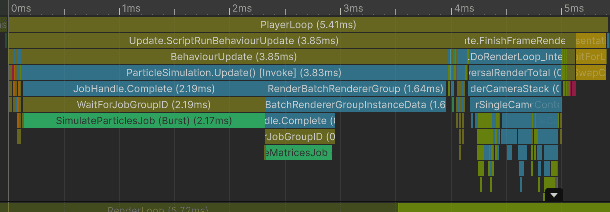
On the main thread, about 1.64 ms was added to compute the particle matrices and submit the buffer updates.
Median CPU time: 5.43 ms
Particles update: 3.65 ms
FinishFrameRendering: 0.90 ms
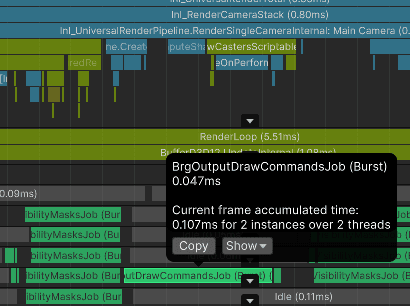
I can also see my job for calculating draw commands executed on one worker thread:
:center-px:
On the render thread, about 2 ms was spent performing the matrix upload work.
Bottleneck: main thread and render thread
Batch Renderer Group: GPU performance
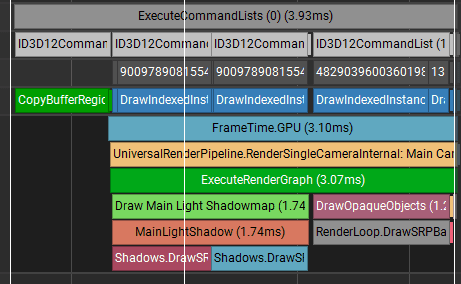
On the GPU, the render time is 3.93 ms
:center-px:
About 0.83 ms was spent copying data, probably the matrices, then 3.10 ms rendering the frame. The GPU rendering cost is therefore very similar to procedural instancing.
However, while performance is high, the GPU draw count is not as low as the procedural instancing path. Nsight reported 1067 draw calls for this capture, which suggests BRG/URP split the work internally across rendering passes and batching units.
:center-px:
My thoughts on BRG
Personally, I am not a fan of this API for this specific use case. It requires a lot of boilerplate code, and the data layout is easy to get wrong.
I prefer procedural instancing here because I can control data updates, culling, and draw submission directly.
Summary
This article compared six ways to render 90 000 CPU-simulated particles in Unity 6 with URP, tested in Unity 6000.3.11f1. The same particle simulation runs in all tests and takes about 1.81 ms on its own. The rendering method makes the biggest difference.
Avoid one GameObject per instance unless you enable GPU Resident Drawer. Even then, transform updates remain costly unless you use TransformAccessArray jobs, and GPU Resident Drawer still has noticeable main-thread cost with many renderer instances.
Graphics.RenderMesh per particle is the worst option in this test, even worse than GameObjects, because Unity creates and clears immediate rendering work every frame and cannot reduce state changes between draw calls.
Graphics.RenderMeshInstanced is much better, but it is limited to 1023 instances per call and still stresses the render thread while preparing batches.
Graphics.RenderMeshPrimitives is the fastest overall for this use case: one script-level draw submission, minimal CPU overhead (~0.26 ms to issue the draw), and only 12 GPU draw calls total in this capture. It requires a custom shader that reads instance data from a structured buffer.
Batch Renderer Group performs similarly to procedural instancing on the GPU, but it requires much more boilerplate and produced 1067 GPU draw calls in this capture.
For this scene, I prefer procedural instancing. It gives direct control over data, culling, and draw submission, while staying much simpler than Batch Renderer Group.
___
Source Code
You can see the commented source code for particle simulation and all rendering methods here: GitLab code snippet
If you are interested in learning more, join the community discussions on Saturday at 15:00 CET
We meet weekly, discussing the rendering and optimization problems. Join our mastermind sessions, chill discussions and small online conference events.
If you are interested in learning more, join the community discussions on Saturday at 15:00 CET
We meet weekly, discussing the rendering and optimization problems. Join our mastermind sessions, chill discussions and small online conference events.